If your surfing the net for hours, daily in your own PC at home, internet files are automatically downloaded into your PC and eventually builds up and takes a little bit more space in your memory cache. If you don't have special programs such as Deep Freeze™, which cancels any actions done to the system after reboot, your might observe that your PC is getting slower, and also you may encounter an alert pop-up box that says
"Windows Virtual Memory Too Low"Control cookies, clear your download history, and take other steps to keep snoops off your online trail.
Cookies: Text containing files containing information about the user an the PC itself, when visiting a site.
Sensitive Cookie Content: Log-in usernames, passwords, etc. They are ENCRYPTED.
Third-party Cookies: Comes from Banners, Ads, Service pop-ups. Flagged and removed by Anti-Spywares.
History: contains links that the user have recently visited.
History Pane: On the Internet Explorer, to open History Pane, press [Ctrl]*[H]
Browser Cache: This is where all the HTML files and images are saved every time you visit a particular site so that the next time you visit the same site again, it would be faster to load images, text and graphics.
How to control Internet Files: I recommend to close all your programs first.
1. Go to the
Control Panel and select
Internet Options.
2. Under the
General tab, click
Delete Cookies and also
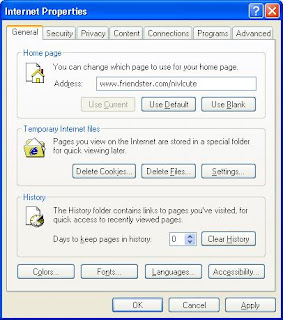
click Delete Files and check Delete All Offline Content. This may take a while.
3. Set Days to Keep Pages in History to "0"
4. Click Clear History.
5. Go to the Privacy tab and select Medium High by adjusting the slider to block Third-Party Cookies
6. Apply changes
Passwords and Form Filters: Browsers automatically store personal data required by Web Forms. Internet Explorer's AutoComplete feature fills in the blanks for you, and it also logs you in to Web sites automatically, remembering what you type as you type it.
To activate AutoComplete:
1. Go to Control Panel and select Internet Options
2. Under the Content tab click Auto Complete.
3. Check Web Addresses, Forms and Usernames and Passwords on Forms.
4. Apply settings.
To clear recorded passwords, forms and the like, repeat steps 1 and 2 then,
Click Clear Forms and/or Clear Passwords.

This are all the Internet Files downloaded into your system. They may be only in kilobytes but if they build up, they can use upto 1000 megabytes which occupies a lot of space in your hard disk. I suggest that after you use the Internet, always delete all Cookies and Temporary Internet Files and Clear History. You may also download Deep Freeze™ so that you will not repeat this process again.